When we start on a project, we often have to spin up several repos, Docker, databases, and more—and it gets tedious typing commands and opening terminal tabs.
I don’t know about you, but more than once I’ve dozed off on the day I had to give a demo—and you can imagine me, half asleep, stumbling through English while trying to set everything up to share my screen.
And almost like Jiminy Cricket, I had Santi telling me: “If you’d set up your aliases, you’d have everything ready in two seconds.”
Before I can explain how to create your own commands, we need to start at the beginning and cover a few concepts.

DISCLAIMER: THIS TALK IS FOR MAC, LINUX, OR WSL. SORRY WINDOWS
What is a SHELL?
An operating system uses programs that interpret the commands a user types in a terminal and perform actions in response. These programs are called SHELLs (command interpreters).
There are several types, but the most common are:
- Bsh: Bourne SHELL
- Bash: Bourne Again SHELL
- Zsh: Z SHELL
SHELLs accept commands that can be files or executable functions, so each user can build files that combine base Linux commands, npm packages, or special structures that let them run from a terminal.
I’ll assume you use the terminal and know some basic commands like ls to list files and folders, cd to move between directories, and rm to delete files or directories.
SHELL programming
The SHELL can accept not only simple commands from the command line, but also sequences of commands, groups of commands, and conditional commands. Think of a SHELL like Node, but instead of interpreting JavaScript it interprets the command language.
It lets us build programs and commands called SHELL SCRIPTS that automate various tasks.
I use ZSH as my SHELL, which has a config file called .zshrc. What do I have there besides commands? GitHub personal tokens, work credentials, and some terminal theme configuration.
The most important thing to start writing commands is creating a file—in this case it’ll be called .ZSH_ALIASES in the same folder as .zshrc, which is usually in the user folder. Why? Because we need to source it from that file, so we import it by writing:
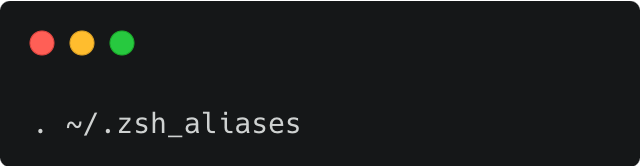
And now we can start writing, right? Here I ran into a few things:
- In my project, one of the apps depends on another to log in. How do I start them at the same time in the same tab?
- We have different Node versions in each repo and I have to set it before running.
- I have to start Docker because otherwise I have no data.
- How do I want things to open? Everything in one tab, or each process in its own tab?
While I was asking myself these questions, a little voice said: “You don’t use all Docker containers—if you need logs from just one, how do you do that?”
So you don’t spend three hours Googling or arguing with Santi on Twitter (or X—I have no idea), here’s the answer:
- Install
concurrentlyto run commands at the same time in the same tab. ttab— Opens a new tab in the terminal (on macOS it’s recommended to install it with brew).
Happy that I had everything ready to go, I wrote my first function ^^
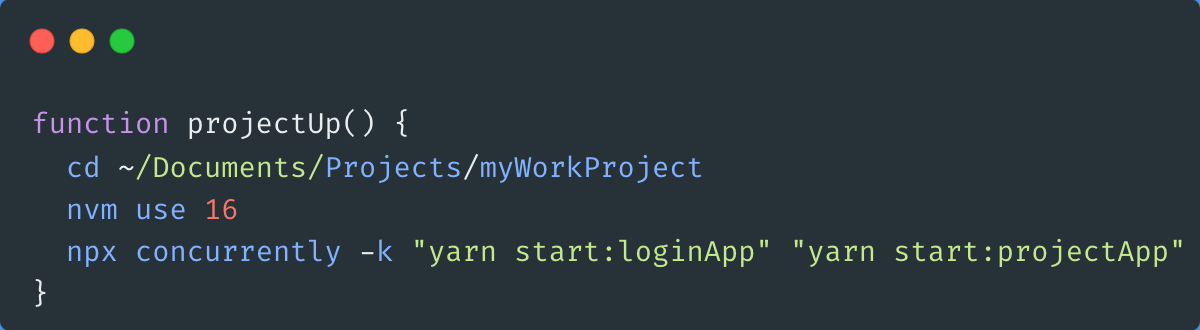
We navigate to the folder, nvm to set the Node version, npx so it installs concurrently if it’s missing, -k so it kills all processes when we hit ctrl+c, and yarn to start the project (we need to start two at once).
All very nice until I go to the terminal and see:

I checked the file, the import, everything—and couldn’t figure out why it wasn’t working.
I want to be clear: this was done on purpose for the example:

Turns out it doesn’t like spaces, so DO NOT PUT SPACES BETWEEN THE = AND THE ALIAS COMMAND (this wasn’t on Google).
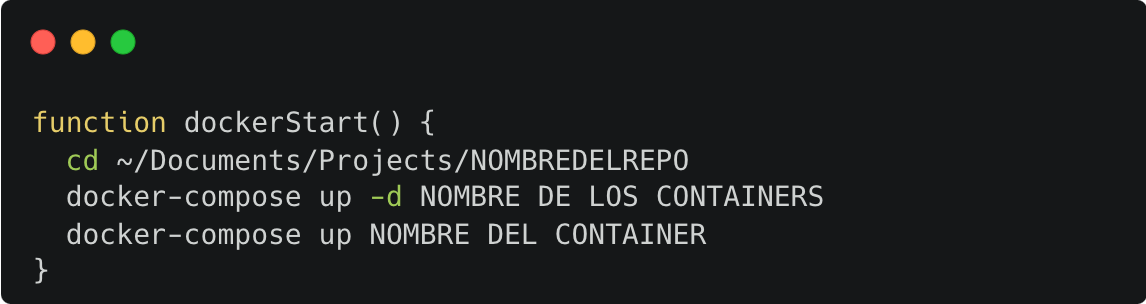
Moving on—regarding Docker, it was solved like this:
That -d means detach. It starts the container and runs it in the background so the second container without -d runs in the terminal window and we can read the logs (which is what I cared about)
Almost done, I promise. Now how do I run everything with a single command?
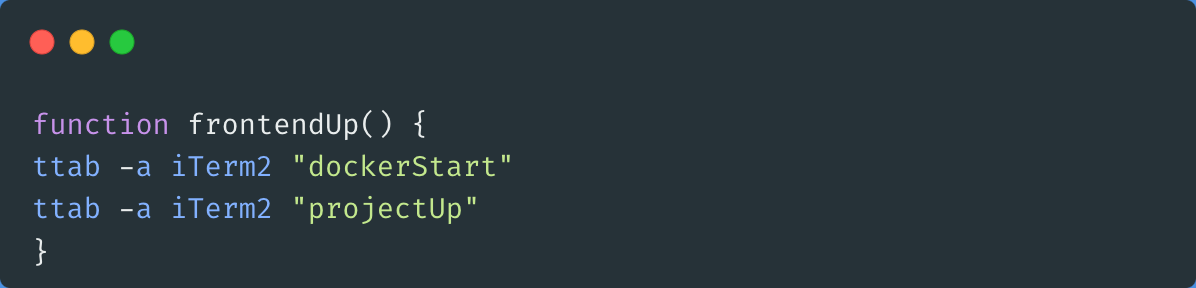
ttab -a iTerm2 is a default ttab command for those who have iTerm2.
The name of the function or functions we declared earlier—in this case Docker and the project ones, which I use day to day. And now I run the frontendUp command, which starts each command in two different tabs (Docker in one, the two apps in another).
In conclusion, even though it took me a couple of days of research, it’s a good way to optimize the start of the workday—and we get to wrestle with something that isn’t JS.
Thanks, and come back soon.
Originally published on DEV Community.