What are Git and GitHub?
Git is a distributed version control system used by software developers who contribute to the same project or software. Basically, it helps users track the different changes made to the software by different people.
GitHub is a platform that provides hosting and version control for your code, and anyone can collaborate on any project anywhere in the world.
How to start using GitHub
The first thing we need to do is set up the environment, so we need to download Git. For any operating system you can download it here
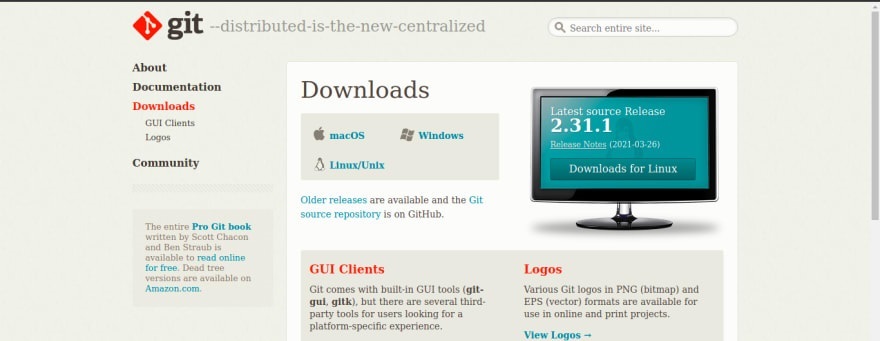

Once Git is installed correctly, we can open the terminal and run the following command to verify it.

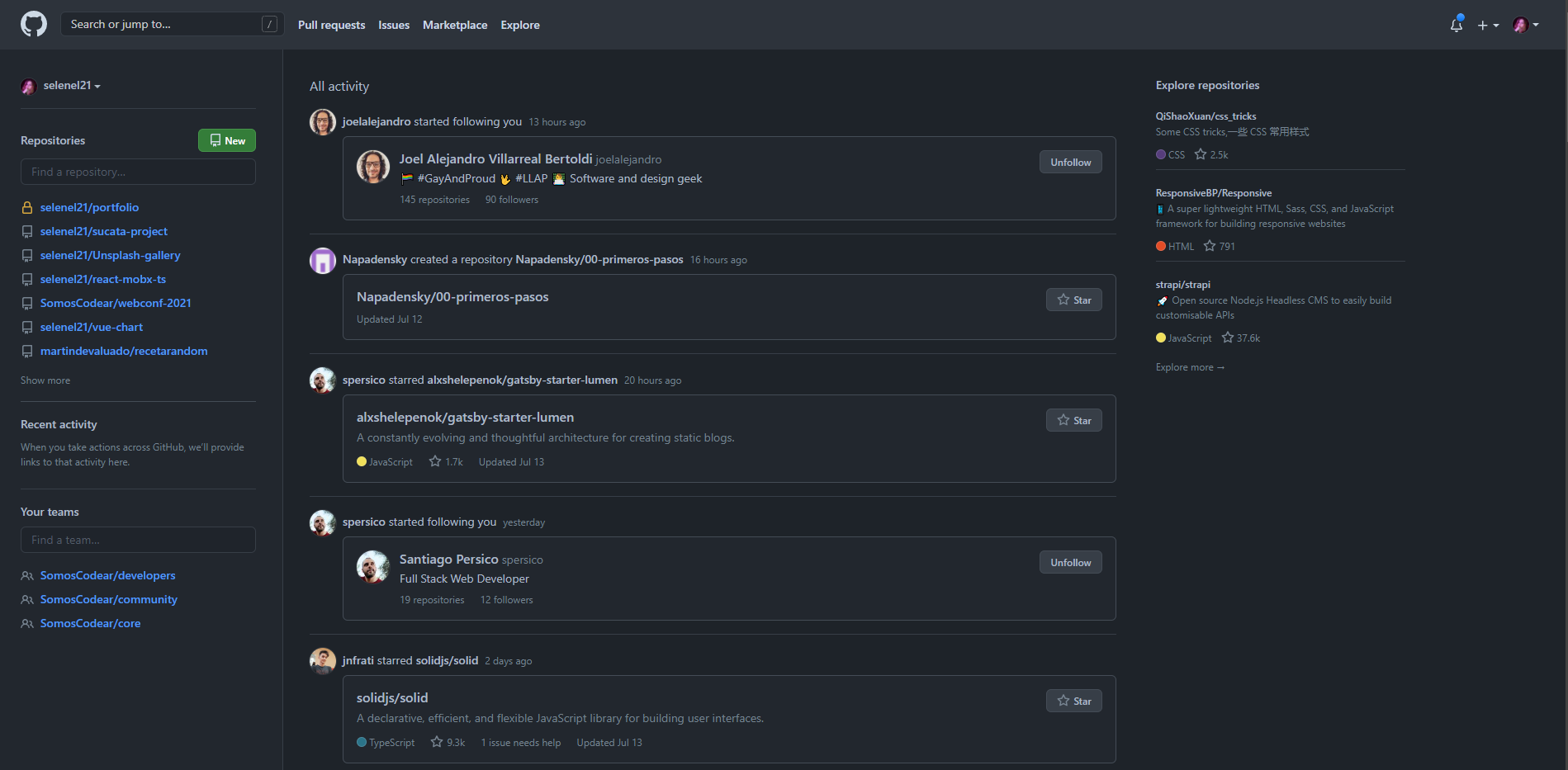
After that we can go to the GitHub website and create an account if we don’t have one.
Your account will look something like this:
Configure Git with your username and email
Now that we have Git on the system, we want to customize the Git environment. You only need to do this once; it will stick across updates. You can also change these anytime by running the commands again.
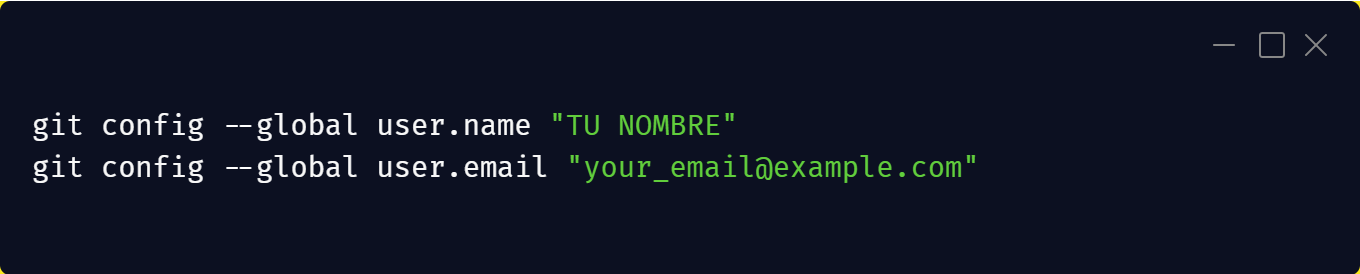
The first thing to do when installing Git is set your username and email address. This matters because Git commit records use this information, and it’s included in every commit you make:
Open a terminal/shell:
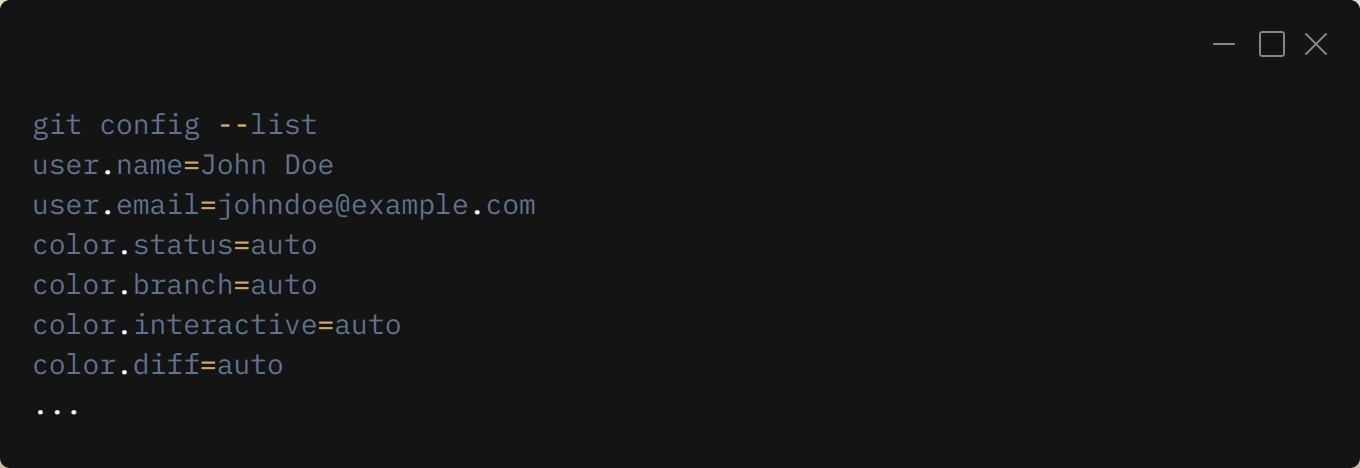
If you want to check the configuration, you can use git config --list to list all properties Git has configured:
Done! You have GitHub configured!

There are certain steps we need to follow to start contributing to your work, personal projects, or open source:
- Creating a repository.
- Forking a repository.
- Cloning a repository.
- Creating commits.
- Pushing code.
- Creating a branch.
- Creating issues.
- Creating a pull request.
- Updating repository content.
Creating a repository.
A repository is a unique folder that contains the files needed for the project—we can think of it as another name for a directory. To create a repository, look at the top-right corner of your window where you have an option to create a repository, as shown in the image below:
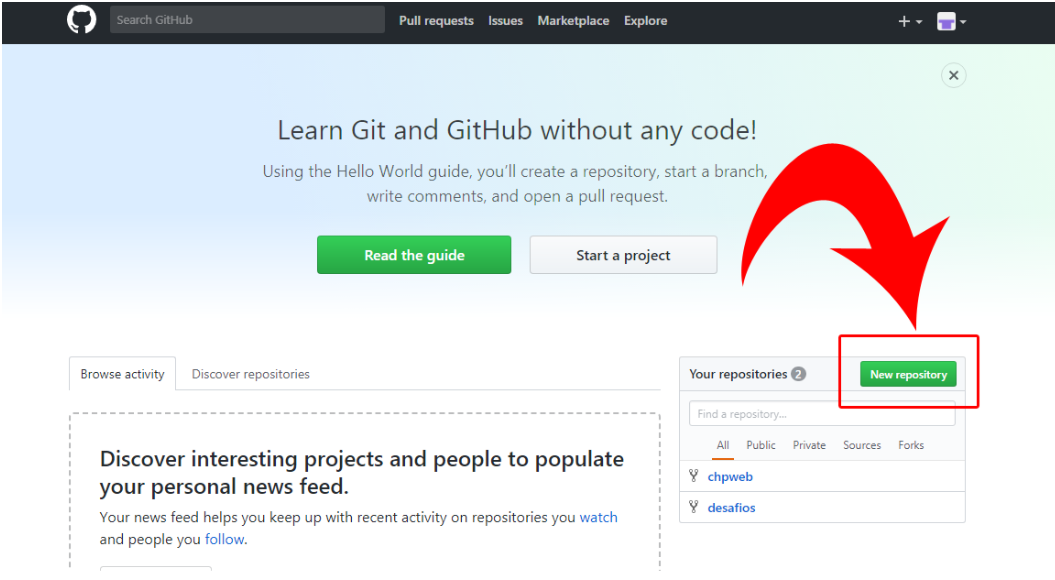
Once you click, you’ll need to enter information about the repository, like its name, whether you want to include a README file (where you can tell the GitHub community what your project is about), include other files, etc.
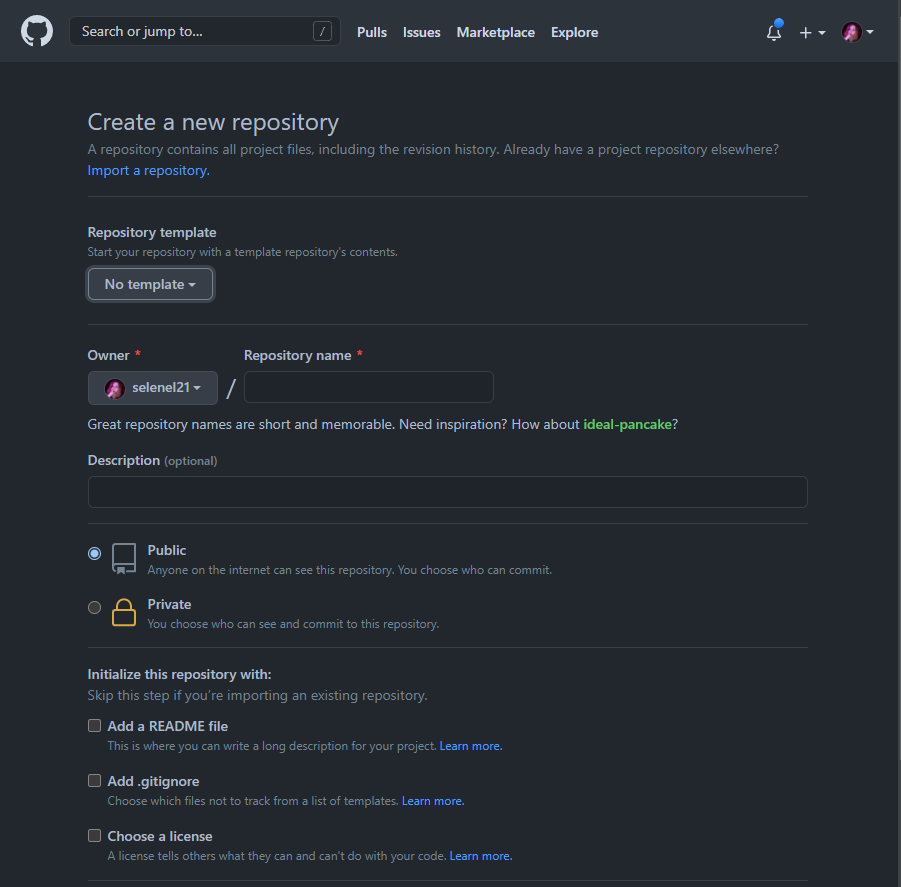
Another way to do it is with Git Init
This command is used to create a new repository in Git. It creates a local repository in the folder you’re in, or you can pass [folder_name] and it will create a folder with that name.

Forking a repository.
A fork is a clone of the repo on GitHub that works like a branch of the original—it’s the main way someone can propose changes to a repository they didn’t create.
If we want to contribute to someone else’s project, the first step is to fork the project to create a copy of that project’s files in our GitHub account.
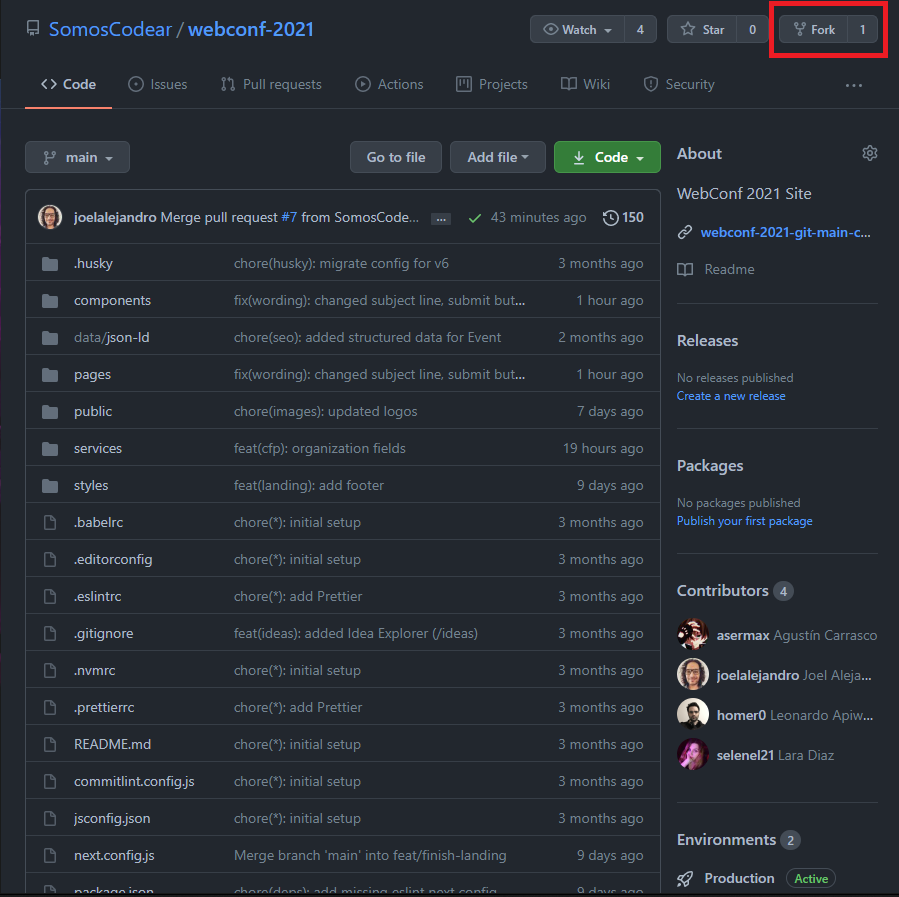
Cloning a repository.
To work on and modify a project, the first step is downloading the files to your PC to run them. This process is known as cloning a repo. Open the terminal, go to the folder where you want the files (e.g. Desktop), and run the following command:

Once that’s done, you’ll have a copy of the project on your PC.
Creating commits.
The commit command saves all changes made in the staging area, along with a short description from the user, as a commit in the local repository.
To add one or more files to the staging area we use the add command:
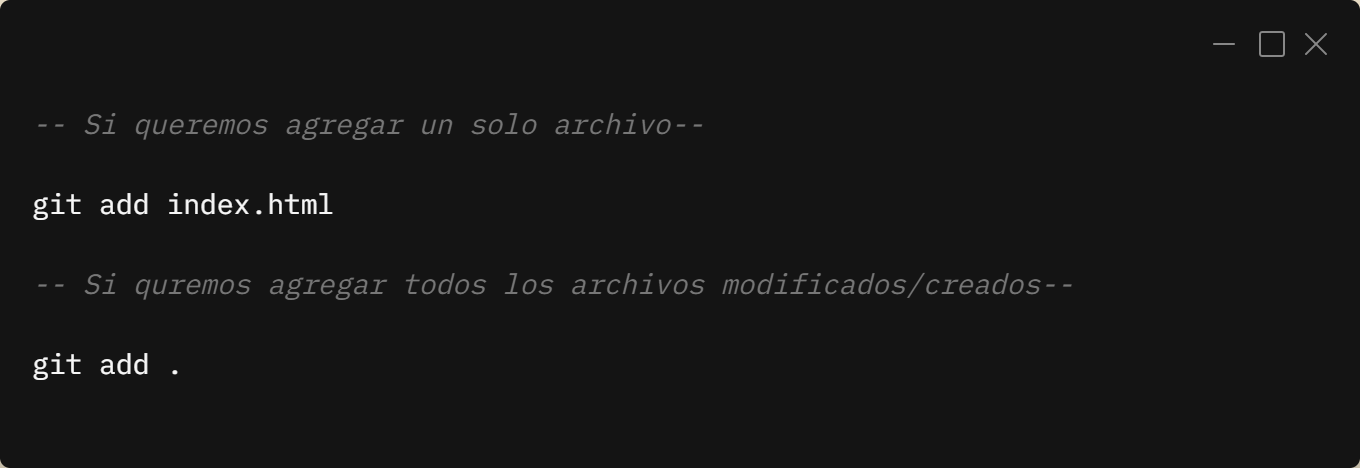
Now in green it shows we have one or more files ready to commit in our repository—until we commit, our files stay in limbo in the Ready state, right before sending them to the repository.

Pushing code.
Our local repository already has our changes; if we want to send them to the remote repository (whether a fork, clone, or our own), we use a command called git push to push new changes. We can do it with the following command:

Creating a branch.
As we know, whenever we develop software or a project, we often create new features or fix a bug (fix), so we use branches for that. Branches are paths any developer can take within the project—they group commits and can be merged back into the main application path. Basically, it’s a way to keep the difference between the original code and the new feature or fix.
To check existing branches in the project we can run the following command:

To create a new branch we can run the following command in the terminal:

To check or switch the current branch you can use the following command:

It’s good practice to create a new branch for each issue you work on.
Creating issues.
In the “Issues” tab, different project collaborators can flag and alert about different bugs or problems within the project. If we want to work on an issue we can comment on it that we’re interested. The project admin or maintainers will assign it to us, and then we can start working on it.
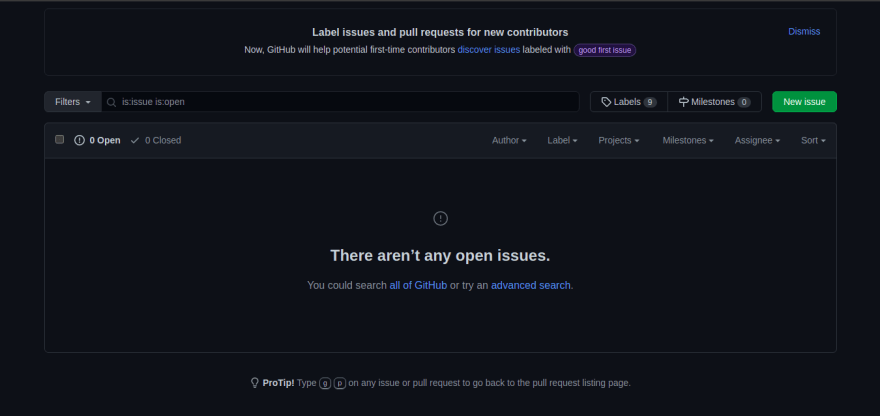
In open source, there’s usually a contributor guide that explains the preferred format for issues, pull requests, and commits.
Creating a pull request.
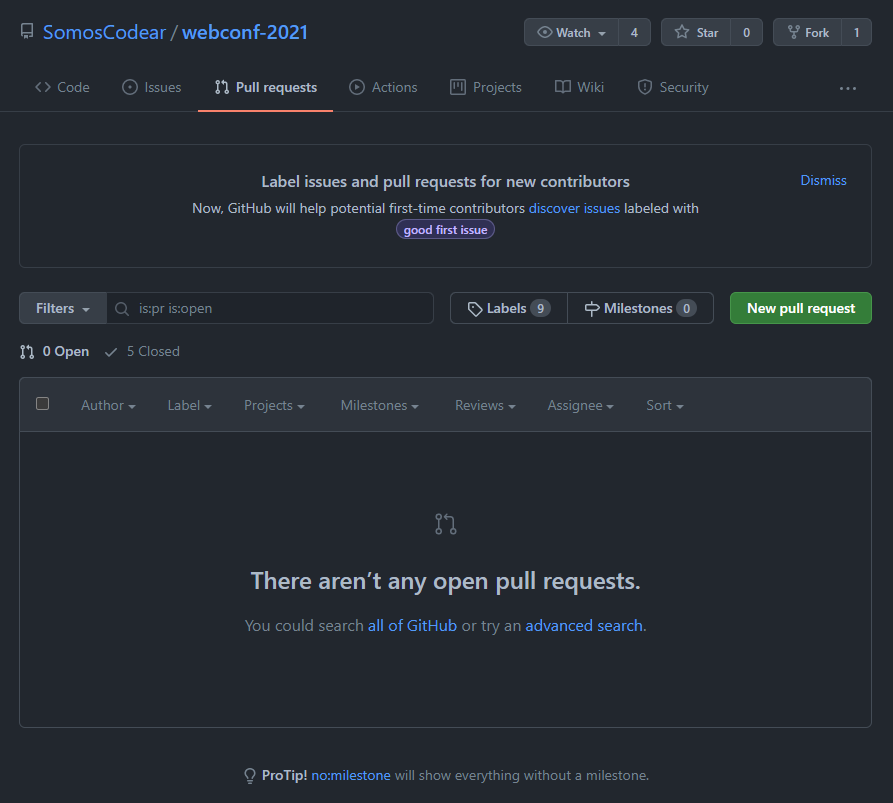
For collaborators to review the changes we’ve made and approve them in the original repository, we need to create a review request or pull request.
Updating repository content.
Since Git is a system where multiple people collaborate, we may need to keep our local repository up to date. There are two ways to do this:
- Using
git pull. - Using rebase.
For option 1, we use the following command:

Here upstream is the location we need to update from and main is the branch to pull from.
For option 2, we can use the following command:
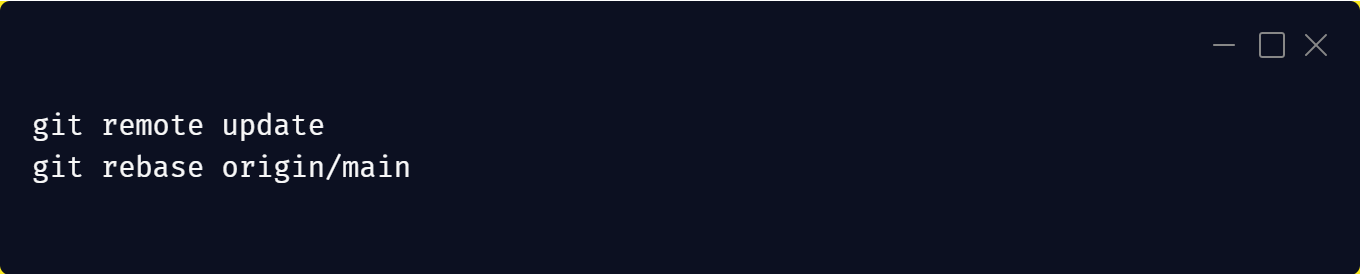
Rebase is preferable compared to pull, since pull is a combination of git fetch and git merge that merges local changes with updates.
Share your opinion or write to me! Github Twitter
Originally published on DEV Community.